

Introduction
OBS is an application that many creators use to stream into Livepeer because it is easy to use, open source, and offers a high degree of customization.Get a unique stream key
Follow our previous guide on creating a stream to get a stream key to provide to the creator on your platform. They will need to use this for their OBS configuration.Open OBS and create source
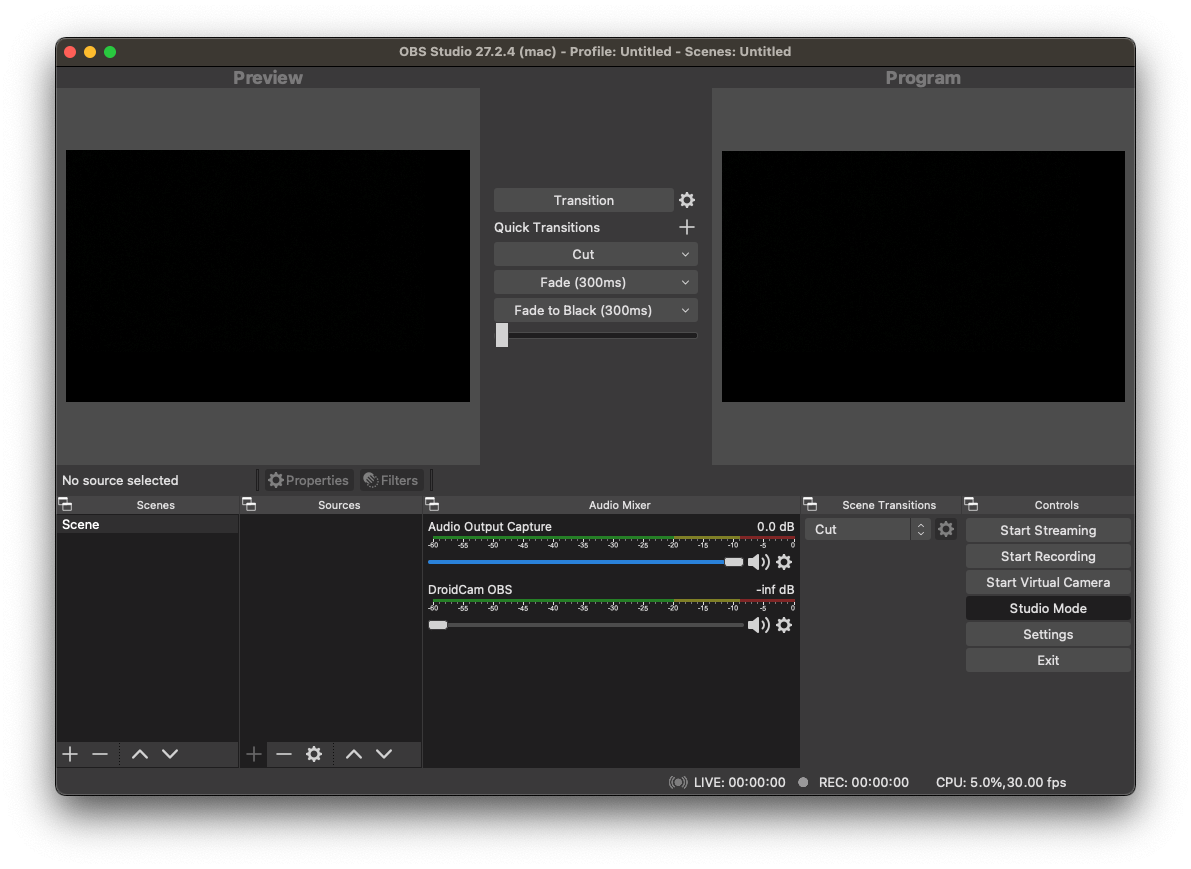
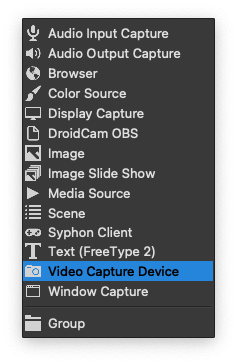
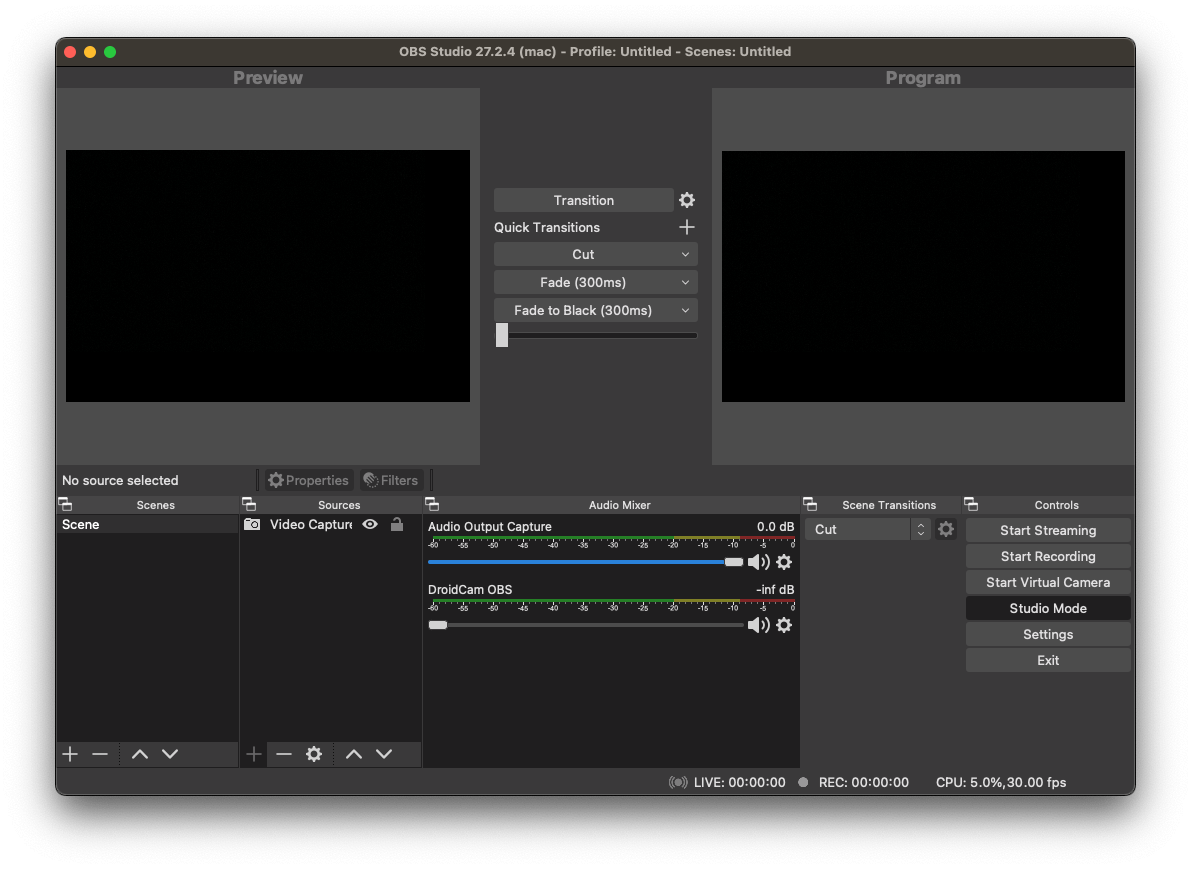
The creator will then need to:- Click the + icon under sources and select Video Capture Device if you’d like to stream using a camera or webcam. If you’d like to stream a browser window, select Window Capture.
- Give the device a name:
Update stream settings
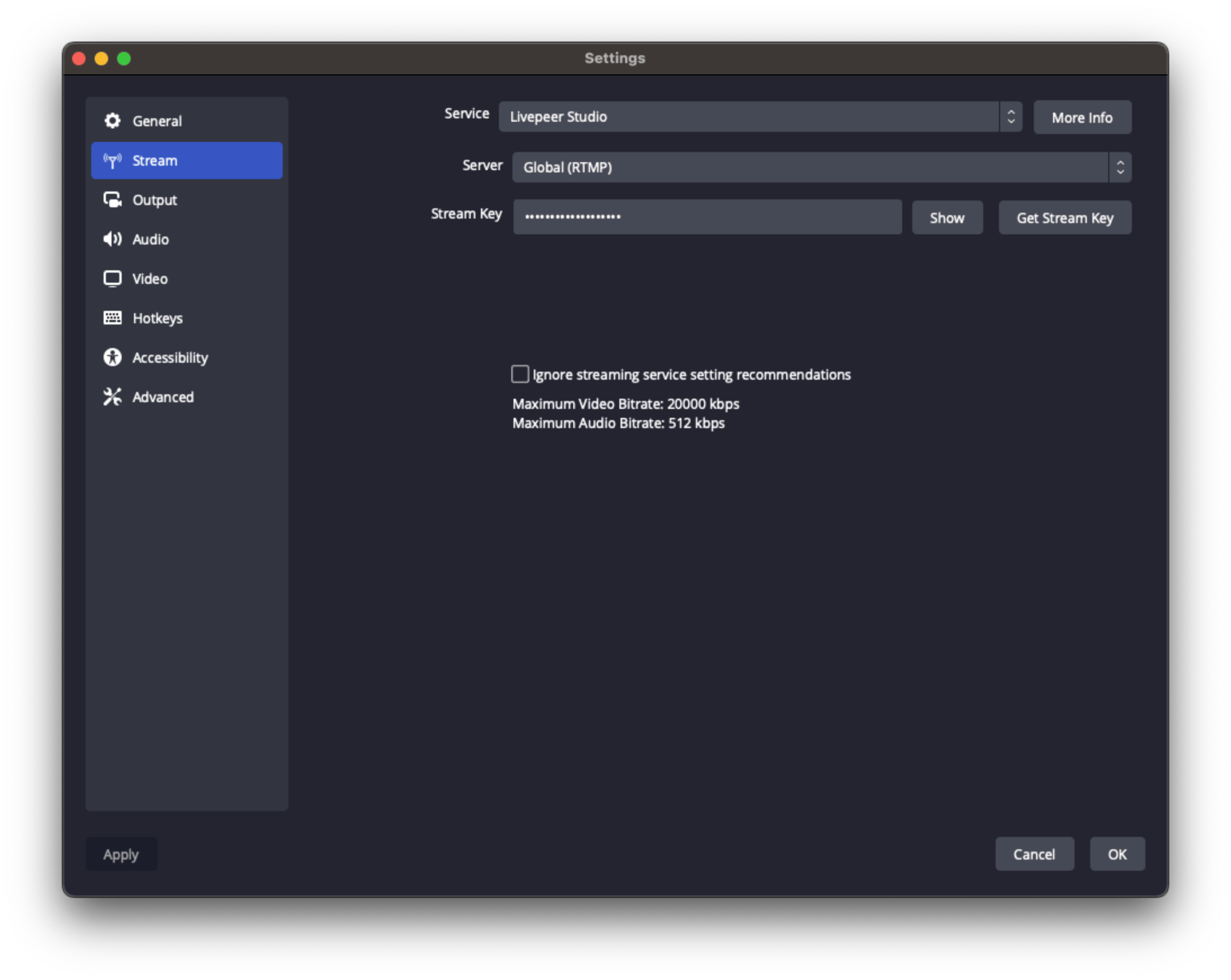
- Select Stream settings.
- Select Show All… and then Livepeer Studio for the service.
- Keep the Default Server and paste the Stream Key provided by Livepeer Studio into the OBS “Stream Key” fields. It is highly recommended to not ignore the streaming service recommendations. If you choose to do this, please see the low latency section below.
Stream and play back
After they save their settings, OBS will return to the stream console. Press start streaming (from the output they selected when inputting your stream settings above). Any player will now be able to play back the livestream with the playback ID.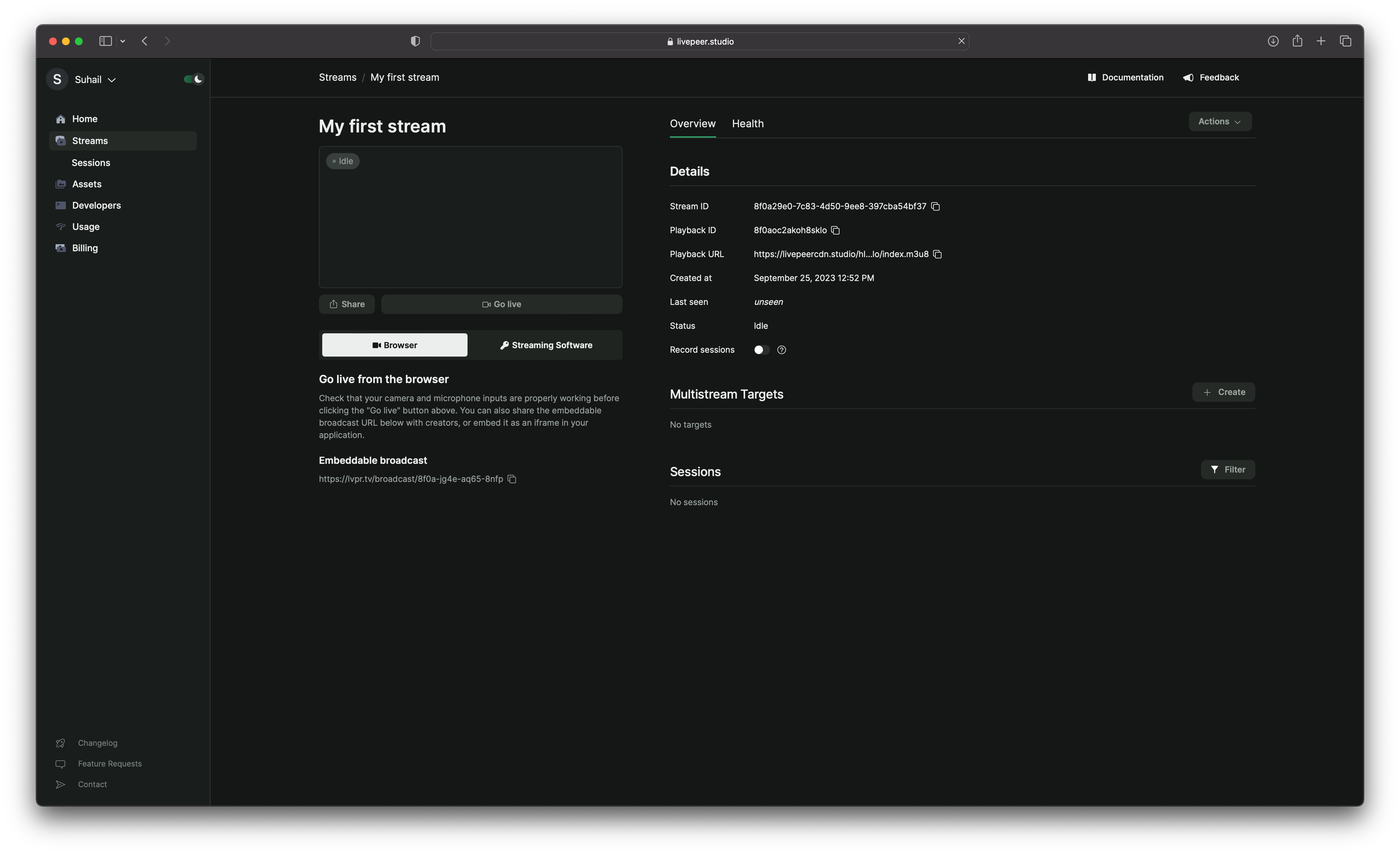
Configuring OBS for Low Latency
Balancing Low Latency with User Experience
Achieving the right balance between low latency and stream quality is essential for providing the best possible user experience. Two settings that significantly impact your stream quality, latency, and user experience are:- Rate Control: This setting dictates the bitrate or “quality” of the stream. A high amount of bandwidth usually means better quality, but keep in mind that your output can never improve the quality of your stream beyond your input.
- Keyframe Interval: Video streams consist of full frames and data relative to the full frames. This setting determines how often a full frame appears, which heavily influences latency.
Optimizing for Low Latency
Low latency is primarily determined by the keyframe interval. Having keyframes appear more frequently allows viewers to “hook onto” a point closer to the actual live point. However, full frames can’t (re)use references to other frames, so more bandwidth is needed to generate a stream of the same quality compared to one with a lower number of keyframes.We also require that the user turns off B-frames for lowest latency. B-frames,
or bidirectional frames, are a type of video frame that makes use of
references from the past as well as the future. They improve video compression
by having more context, but also increase latency because they require a
bigger encode buffer. Furthermore, in WebRTC video playback, B-frames will
appear out-of-order on most systems.